Mapping Application to Workspace
Each application in Maverix is mapped to a workspace. For more information, see the "Workspace Overview" section of Application Administrator Guide. In Maverix, there is always the predefined Default workspace. Until other workspaces are created in Maverix, all applications can only be mapped to this workspace. By default, during the creation process in the Create application window, the application is mapped to the Default workspace. When creating an application, it is possible to map it to another previously created workspace, as long as the user creating the application has access to it.
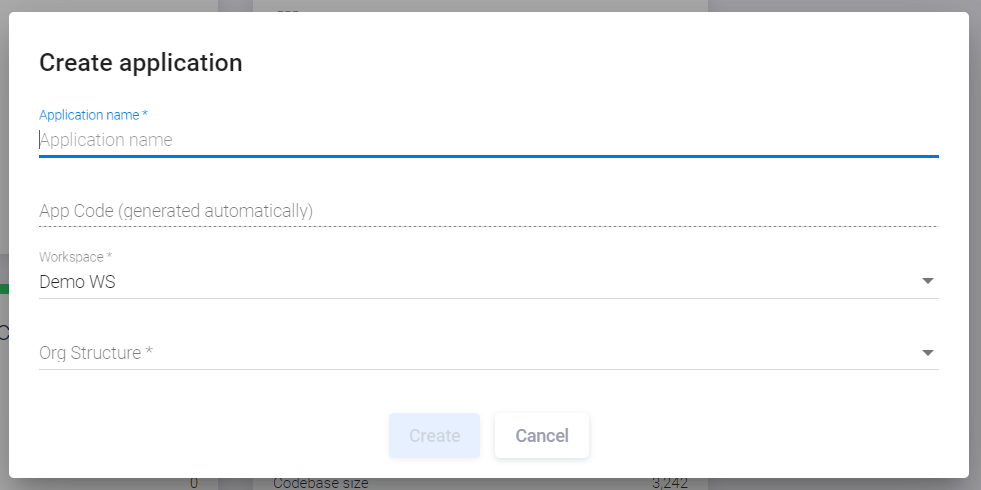
Additionally, in Maverix there’s always the predefined Default team. Until other teams are created, all users are included only in this team. If a user with Manager rights can only work with the Default team, the workspace can only be changed to workspaces that users from the Default team have access to.
Once Administrator creates new teams in Maverix, and only Administrator can add Manager to them. In such a case, the Manager's access to workspaces will be extended, and Manager will be able to select any workspace from all those available to Manager's teams.
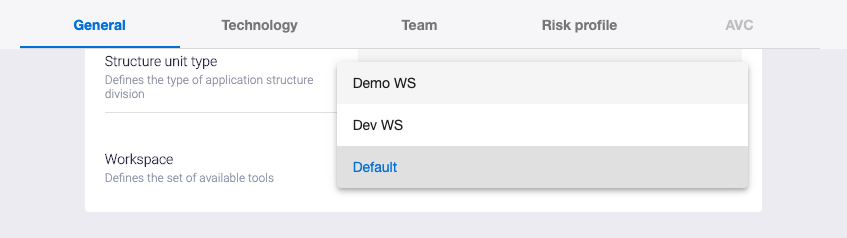
It’s possible to map an application to another workspace using the Workspace drop-down menu on the General tab.
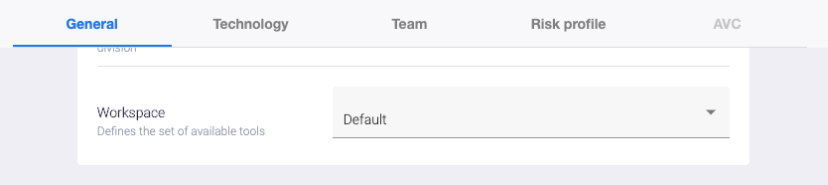
Just select another workspace from the list of the available workspaces.